
To trade through Farlo, you need to connect your Farlo trading account to MetaTrader 5 (MT5). You can connect either a demo account or a real trading account, depending on how you want to trade.
- Choose the Farlo Trading Account You Want to Use
- Step 1: Open Your Trading Account on Farlo
- Step 2: Find Your Login, Server and Password
- Step 3: Download MetaTrader 5
- Step 4: Connect Your Farlo Account to MetaTrader 5
- Step 5: Check Your Connection
- Connecting Your Demo Account
- Connecting Your Real Trading Account
- If You Have More Than One Farlo Account
- Keep Your Trading Details Safe
- Frequently Asked Questions
Your Farlo account page gives you the Login, Server and Password you need to make the connection. Once connected, you use MetaTrader 5 to access your trading account and place trades.
If you haven’t created a Farlo account yet, start with our guide to registering on Farlo.
Already have your account? Here’s how to connect it to MT5.
Choose the Farlo Trading Account You Want to Use
You can connect a demo account or a real trading account to MetaTrader 5.
A demo account lets you practise trading with virtual funds before trading with real money. When you’re ready to trade with real money, you can connect one of Farlo’s real trading accounts using the same basic process.
Farlo currently offers three real trading account types:
- Standard: The Standard account charges no commission but offers higher spreads.
- Pro: The Pro account is for traders who want lower spreads. It charges a $7 USD commission per round lot on Forex, Energies and Metals.
- Cent: The Cent account is denominated in USC, with the same trading conditions as the Standard account. With a Cent account, $1 USD deposited is shown as 100 USC.
Once you’ve decided which account you want to use, open that account in Farlo. You’ll then need the account details shown there to connect it to MT5.
Step 1: Open Your Trading Account on Farlo
Log in to your Farlo account and go to Accounts. Open the trading account you want to connect to MetaTrader 5.
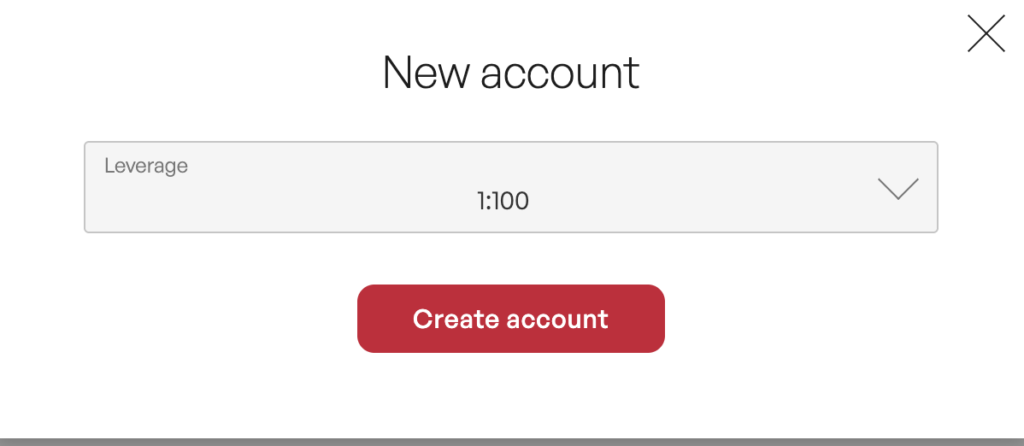
If you have more than one account, check that you’ve opened the right one before continuing. Your accounts have their own login details, so the details for one account won’t be the same as another.
Once you have the correct account open, look for the details you’ll need to connect it to MT5.
Step 2: Find Your Login, Server and Password
Once your trading account has been created, you can find your connection details in your Farlo account. You will also receive your trading account details by email.
You’ll need these three details:
Login: Your trading account Login.
Server: The server for your Farlo trading account:
FarloMarkets-Server
Password: The Password for your trading account.
Keep these details available. You’ll enter them into MetaTrader 5 in the next step.
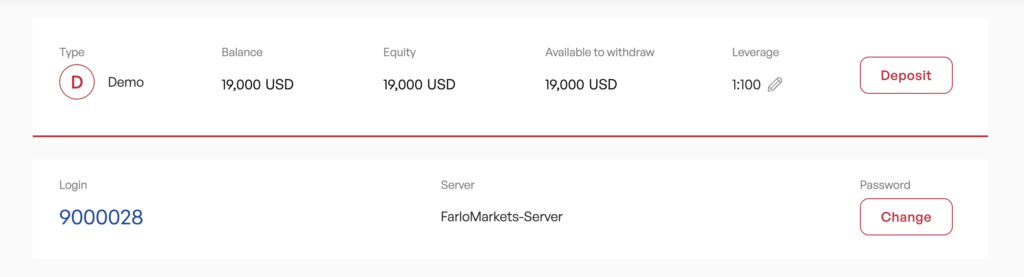
If you’re connecting a demo account, use the details for that demo account. If you’re connecting a real account, use the details for the specific Standard, Pro or Cent account you want to use.
Step 3: Download MetaTrader 5
MetaTrader 5 is the trading platform you’ll use to access your Farlo trading account.
If you don’t have MT5 installed yet, download it from the official MetaTrader 5 website.
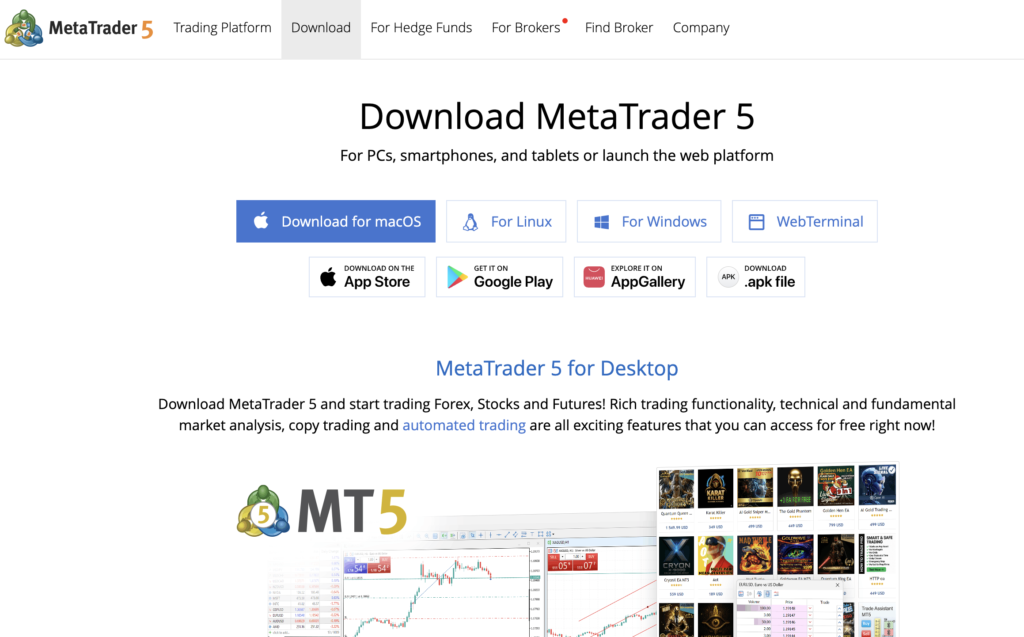
MetaTrader 5 is available for desktop and mobile devices. Choose the version that matches your device, install it and open the application. (MetaTrader 5)
Once MT5 is open, you can connect the trading account you already created on Farlo.
Step 4: Connect Your Farlo Account to MetaTrader 5
In MetaTrader 5, choose the option to connect an existing trading account.
You don’t need to create another trading account through MetaTrader 5. Your trading account is already with Farlo. You’re connecting that account to the MT5 platform.
Enter the details from your Farlo account page:
Login: Your Farlo trading account Login
Password: Your Farlo trading account Password
Server: FarloMarkets-Server
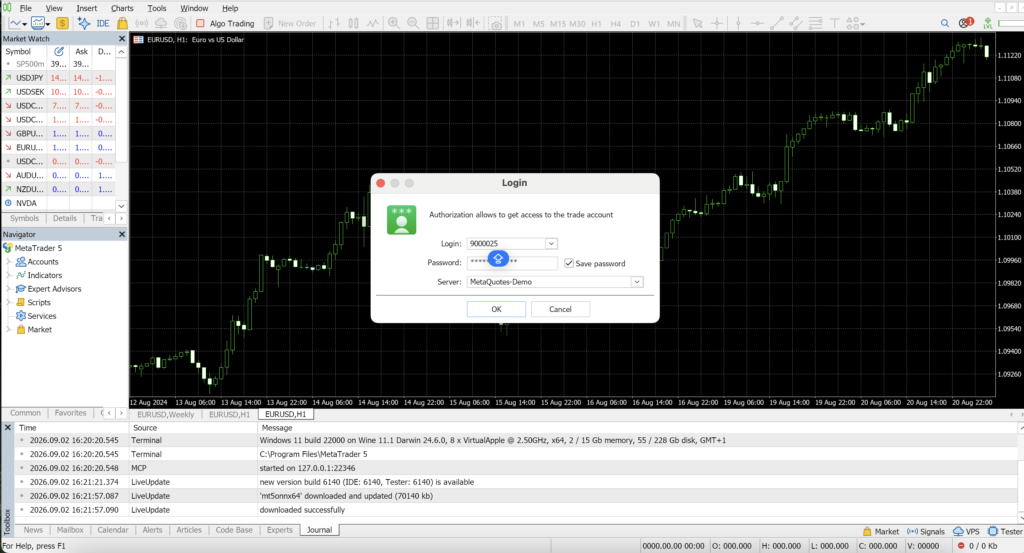
Check the details before completing the connection. Make sure the Server is FarloMarkets-Server and that the Login and Password belong to the Farlo account you want to connect.
Once the details are entered, complete the connection.
Step 5: Check Your Connection
After entering your account details, check that MetaTrader 5 has connected to your Farlo trading account.
If it doesn’t connect, check the three details again:
- Login
- Password
- Server
Start with the Server and make sure it is set to FarloMarkets-Server. Then check that you’re using the correct Login and Password for the account you’re trying to connect.
If you’re connecting a demo account, make sure you’re using the demo account details. The same applies to your Standard, Pro or Cent account.
If the details are correct and you still can’t connect, contact Farlo for help.
Connecting Your Demo Account
You can connect your Farlo demo account to MetaTrader 5 and practise trading with virtual funds.
The process is the same as connecting a real trading account. Open your demo account in Farlo, find the Login, Server and Password, then enter those details in MT5.
This lets you get familiar with the trading platform and practise placing trades without using real money.
Connecting Your Real Trading Account
You can also connect your Farlo real trading account to MetaTrader 5. Farlo currently offers three real account types: Standard, Pro and Cent.
Each account has its own Login and Password, so make sure you use the credentials belonging to the specific account you’re connecting.
If you have more than one Farlo trading account, check the account page before connecting so you don’t accidentally use details from a different account.
If You Have More Than One Farlo Account
Having more than one trading account means you’ll have different account details for each one.
For example, if you have both a Standard and Pro account, each account has its own Login, Password and account information. When connecting to MT5, always use the details for the account you want to access.
If you’re not sure which details belong to which account, go back to your Farlo Accounts page and check before entering them into MT5.
Keep Your Trading Details Safe
Your Login and Password are private account details. Don’t share them publicly or give them to someone who asks for your trading credentials without verifying who they are.
Frequently Asked Questions
Yes. You can connect your Farlo demo account to MT5 using the Login, Server and Password provided for that account.
Yes. You can connect a Standard, Pro or Cent account to MT5 using the credentials for that specific account.
Use FarloMarkets-Server.
You can find your trading account details in your Farlo account. Your Login, Server and Password are also sent to you by email when your trading account is created.
No. Your trading account is created through Farlo. You connect that existing account to MetaTrader 5 using your Farlo Login, Password and Server.
You can download MT5 from the official MetaTrader 5 website.
Download MetaTrader 5